
A simple, hidden text file at the root of your site can redirect URLs, compress resources, set cache headers, or lock a directory. The .htaccess file is the most manipulated configuration tool on the web, and probably the most misunderstood: blocks found online are pasted into it, without always knowing what they do or what they cost.
The guides that dominate search results treat it like a toolbox: rules to copy, page after page. None mention a fact that is clearly documented by the Apache documentation: the .htaccess mechanism itself has a performance cost, paid on each request, on each page. Mastering this file therefore means knowing how to write it as much as knowing when to do without it.
This guide covers everything from the beginning, from creating the file to rules for compression, caching, redirection, and security, with each directive explained line by line. It also answers the question that no one asks and that should nevertheless come first: what does Apache actually do with this file on each visit, and how much does it cost you?
What is an .htaccess file?
An .htaccess file is an Apache web server configuration file, placed in a site directory, that modifies the server's behavior for that directory and all its subdirectories. It allows you to act without access to the main configuration, making it the go-to tool for shared hosting for over twenty years.
Its scope covers the essentials of what a site asks of its server: URL rewriting and redirection, response compression, cache and security headers, password protection, blocking addresses. The Apache documentation describes it as a decentralized, per-directory configuration method, and each technical term in this article is covered in the language of web performance if a reminder is needed.
The file doesn’t concern everyone: according to W3Techs, as of August 23, 2026, Apache serves 22.6% of websites whose server is identified, behind Nginx (31.4%). The total number of sites that read .htaccess files is actually larger, because LiteSpeed, which is compatible with Apache directives and present on 14.9% of sites, also interprets them: more than a third of the web still reads these files, including the vast majority of French shared hosting.
Where is the .htaccess file located?
The .htaccess file is located at the root of the site, in the directory containing the public files, often named www, public_html, or htdocs depending on the host. Additional files can exist in any subdirectory, and each applies to its directory and the levels below, in a cascade.
If it seems absent, it’s almost always a display issue: the leading dot in its name makes it a hidden file on Unix systems. In FileZilla, the “Server” menu offers the option “Force showing hidden files”; in cPanel or Plesk file managers and with shared hosts like OVHcloud, a “Show hidden files” checkbox serves the same purpose in display preferences. An invisible file is therefore not a missing file.
The cascade between multiple files deserves special attention, as it is a classic source of unexplained behavior. An .htaccess file in a subdirectory inherits directives from higher levels and can contradict them: during an audit, it is not uncommon to find three or four stacked files, including one forgotten in a subfolder that cancels the compression set at the root. A complete inventory of the site's .htaccess files, from the root directory down to the extension subfolders, is the first step before any diagnosis.
How to create an .htaccess file?
An .htaccess file is created with a simple text editor: the exact name is .htaccess, including the leading dot, with nothing before or after it. It has no extension, neither .txt nor .html, and saving it as “htaccess.txt” is the most frequent creation error.
Three technical precautions avoid hours of diagnostics: UTF-8 encoding without BOM, as a byte order mark at the start of the file can cause a server error; Unix line endings preferably; and a code editor rather than a word processor, which would add invisible and fatal formatting to the file. On Windows, naming the file ".htaccess." with a trailing period bypasses the explorer's refusal to create a name starting with a period.
What is the default WordPress .htaccess file?
WordPress generates a standard rewrite block in the .htaccess as soon as permalinks are activated, framed by the # BEGIN WordPress and # END WordPress markers. This block redirects all URLs to index.php, and anything written between the two markers will be overwritten by WordPress during settings updates.
# BEGIN WordPress
<IfModule mod_rewrite.c>
RewriteEngine On
RewriteRule .* - [E=HTTP_AUTHORIZATION:%{HTTP:Authorization}]
RewriteBase /
RewriteRule ^index\.php$ - [L]
RewriteCond %{REQUEST_FILENAME} !-f
RewriteCond %{REQUEST_FILENAME} !-d
RewriteRule . /index.php [L]
</IfModule>
# END WordPress
Line by line: RewriteEngine On activates the rewrite module; the following rule preserves the HTTP authorization header for APIs; the two RewriteCond directives check that the requested URL matches neither a real file (!-f) nor a real directory (!-d); if so, the request goes to index.php, where WordPress resolves the permalink. It is this mechanism, documented in the WordPress administration manual, that makes your URLs readable, and that is why your personal directives are placed outside the markers, before the block.
A word about ready-made .htaccess files offered by some sites, to download and drop as-is: this is the worst way to configure a server. These files stack dozens of directives for modules that your hosting doesn't necessarily have, and each unrecognized line is a potential 500 error and a cost per request. The good practice is the opposite: start with a minimal file, and add only what you understand.
Can the .htaccess file configure PHP?
Yes on hosting where PHP runs as an Apache module, no on the majority of current offerings that use PHP-FPM. php_value and php_flag directives only work with mod_php: on FPM hosting, they cause an immediate 500 error on the entire site, and configuration is done via a .user.ini file.
# Uniquement si PHP tourne en module Apache (mod_php) :
php_value upload_max_filesize 64M
php_value memory_limit 256M

# Sur PHP-FPM, ces valeurs vont dans un fichier .user.ini :
# upload_max_filesize = 64M
# memory_limit = 256M
The test is simple: if adding a php_value breaks the site, your PHP is running in FPM, and the .user.ini file placed at the root takes over with the same syntax as php.ini. This distinction explains a good part of the "htaccess php" requests that end up in troubleshooting: the copied tutorial dates from a time when mod_php was the norm, and hosting has changed its execution mode since then. One question remains that these fundamentals never address: what this file costs the server.
Does the .htaccess file slow down a site?
Yes, the mechanism itself has a cost, regardless of the rules written in it. When the AllowOverride directive allows it, Apache looks for an .htaccess file in each directory of the requested path, on each request, without caching this read. The Apache documentation itself recommends avoiding these files completely when possible to access the main configuration.
The detail of the mechanism deserves to be understood, as it is counter-intuitive. To serve /blog/article/, Apache checks for the presence of an .htaccess at the root of the authorized file system, then in each intermediate directory up to the target, reads each file found, merges their directives in the correct order, and applies the result. This mechanism, documented on the AllowOverride page of the Apache documentation, is repeated for each request received, including images and scripts: a page that loads 60 resources triggers 60 complete cycles.
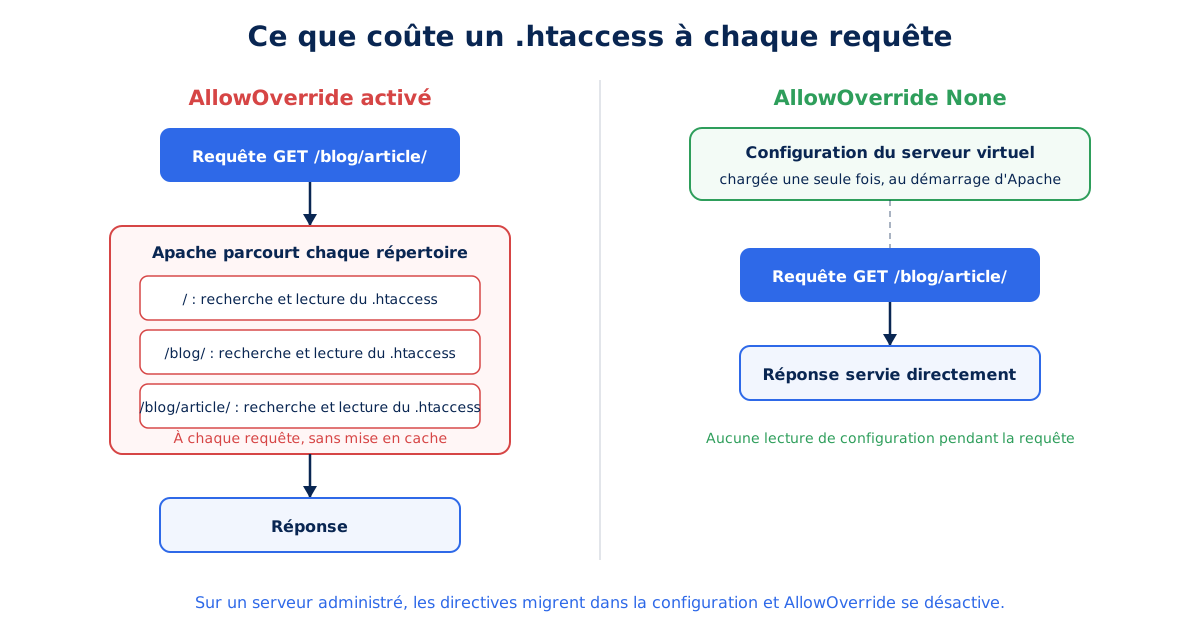
.htaccess in each directory of the path, on each request, without caching.Virtual server configuration follows the inverse logic: it is read only once, at Apache startup, then kept in memory. No disk access, no syntax analysis during the request. The difference is paid for in initial response time, that TTFB for which Google sets the recommended threshold at 800 ms and for which we detail elsewhere the optimization levers: a few milliseconds per request, multiplied by the number of resources and visitors, form a permanent tax that no one measures because it is diluted everywhere.
The order of magnitude depends on three factors: the depth of the tree, the number of .htaccess files actually present, and the server load. On a site with a flat tree and a single short file, the overhead is measured in fractions of a millisecond per request and remains negligible; on a deep tree with several long files and a busy disk, it becomes measurable at the bench, which explains why all high-performance hosts disable AllowOverride on their managed offerings. Honest measurement is done on your end, with a load test before and after the switch: this is the only figure that matters for your site.
Should I use .htaccess or server configuration?
Server configuration, without hesitation, as soon as you have access to it: same directives, moved to a Directory block in the virtual server, then AllowOverride None to cut off file searching. On shared hosting without access to this configuration, .htaccess remains the only available option, and it does the job.
The answer outlines two audiences, and this is the core of the expert position on this subject. Those who administer their server, VPS, or dedicated server, benefit from migrating each block of their .htaccess to the configuration, testing, and then disabling AllowOverride: in audits, we regularly encounter managed servers that still have .htaccess files inherited from old shared hosting, paying for the mechanism for no reason anymore. Those who are on shared hosting do not have this choice, and the rest of this guide is written for them: clean, understood rules, and as few as possible.
Does Nginx use .htaccess files?
No, Nginx completely ignores .htaccess files, by design choice: all configuration is centralized in files loaded at startup, and reloaded explicitly with each modification. An .htaccess file placed on an Nginx server is a dead file, never read by anyone, which many users who look for it are unaware of.
This choice explains part of Nginx's reputation for speed, serving 31.4% of sites according to W3Techs: no directory-based file lookups, no directive analysis during the request. Rules are translated, not copied: the official documentation offers a guide to converting rewrite rules, and most .htaccess redirects are expressed in a single server block line. If your WordPress host runs on Nginx, your cache and redirect rules therefore live elsewhere, generally on a dedicated interface or with the hosting provider. For everyone else, let's get to the useful directives, starting with the most profitable.
How to enable compression in the .htaccess file?
Compression is enabled with the mod_deflate module, by declaring the MIME types to be compressed. The gain is immediate and considerable: HTML, CSS, and JavaScript commonly lose 60 to 80% of their transferred weight, which directly benefits the LCP. This is the directive with the best effort-to-gain ratio in the entire file.
<IfModule mod_deflate.c>
  AddOutputFilterByType DEFLATE text/html text/css text/plain
  AddOutputFilterByType DEFLATE application/javascript application/json
  AddOutputFilterByType DEFLATE application/xml image/svg+xml
</IfModule>
Every element counts: the IfModule condition prevents a server error if the module is not loaded, and each AddOutputFilterByType, documented with the mod_deflate module, adds a content type to the compression filter. The list is intentionally limited to text formats: JPEG, WebP, AVIF, MP4, and WOFF2 fonts are already compressed in their own format, and recompressing them wastes CPU for zero gain, sometimes negative.
On hosting that offers the mod_brotli module, the same logic applies with the BROTLI_COMPRESS filter, for an additional gain of around 15% on text files. The choice between gzip, Brotli, and Zstandard, their levels, and their uses is a matter of a comparison of compression algorithms in itself: remember here that the .htaccess directive only activates what the hosting makes available, and nothing more. Compression lightens the initial load; caching, on the other hand, eliminates subsequent ones.
How to configure browser cache in the .htaccess file?
Browser cache is configured with the mod_expires and mod_headers modules, which set the Expires and Cache-Control headers on responses. A duration of one year on versioned static resources, i.e., max-age=31536000, is the reference value recommended by browsers, and it eliminates dozens of requests on repeat visits.
<IfModule mod_expires.c>
  ExpiresActive On
  ExpiresByType text/css "access plus 1 year"
  ExpiresByType application/javascript "access plus 1 year"
  ExpiresByType image/webp "access plus 1 year"
  ExpiresByType image/avif "access plus 1 year"
  ExpiresByType font/woff2 "access plus 1 year"
  ExpiresByType text/html "access plus 0 seconds"
</IfModule>
<IfModule mod_headers.c>
  <FilesMatch "\.(css|js|woff2|webp|avif)$">
    Header set Cache-Control "max-age=31536000, immutable"
  </FilesMatch>
</IfModule>
The first block relies on mod_expires to set a duration per resource type, with a decisive exception: HTML expires immediately, because a page must always be updatable. The second relies on mod_headers to add the immutable directive, which tells the browser to never revalidate the resource during its lifetime, as documented in the MDN Cache-Control reference. This strategy only works if files change names with each modification, a principle summarized better than anyone by Jake Archibald.
In this model, you never change the content of a given URL: you change the URL.
Jake Archibald, a recognized web platform engineer, in his article "Caching best practices &max-agegotchas" published on his blog on April 27, 2016
WordPress and its build tools already version most resources via a parameter or a fingerprint in the filename, making this model applicable as is. The complete operation of the chain, from the browser to the CDN to the database, is detailed in our guide to web caching at all levels: the .htaccess only controls the first link, on the browser side, but it's the one that purely and simply avoids requests.
Should ETags be disabled?
Yes in a multi-server environment, no need to worry about it on a single server. The ETag is a validation fingerprint generated by Apache: if two servers behind a load balancer generate different fingerprints for the same file, each switch invalidates visitors' cache, and the expected 304 responses become full 200s again.
<IfModule mod_headers.c>
  Header unset ETag
</IfModule>
FileETag None
The two directives complement each other: FileETag None tells Apache to stop generating a fingerprint, and Header unset ETag removes those that another link might have set. Validation is still ensured by the Last-Modified header, which is sufficient to produce 304 responses saving the response body; the exact semantics of these codes and their server cost are the subject of our guide to HTTP codes, particularly the mechanics of 304 responses and redirects. These redirects, incidentally, are also configured in .htaccess.
How to do a 301 redirect in the .htaccess file?
A permanent redirect is written on one line with the Redirect 301 directive, followed by the original path and the full destination URL. The 301 code indicates a permanent move that search engines remember, while a 302 signals a temporary move that nothing consolidates: the wrong choice is paid for in SEO.
Redirect 301 /ancienne-page/ https://www.exemple.fr/nouvelle-page/
RedirectMatch 301 ^/blog/[0-9]{4}/(.*)$ https://www.exemple.fr/$1

RewriteEngine On
RewriteCond %{HTTPS} !=on [OR]
RewriteCond %{HTTP_HOST} !^www\. [NC]
RewriteRule ^ https://www.exemple.fr%{REQUEST_URI} [R=301,L]
Three levels of tools coexist in this example. Redirect handles an exact URL; RedirectMatch accepts a regular expression, here to remove the year from a blog's permalinks by capturing the end of the URL in $1; and the mod_rewrite block forces HTTPS and the www prefix in a single rule. The double RewriteCond linked by [OR] is the detail that matters: it triggers the redirect if the protocol or host is incorrect, and sends directly to the final form, which guarantees a single hop instead of a chain of two successive redirects.
Every avoided hop counts, because a redirect costs a full network round trip before the page even starts loading, commonly 100 to 300ms on mobile which adds to the TTFB. The semantics of 301, 302, or 308 codes and their respective costs are covered in the already cited HTTP status codes guide: here, remember the golden operational rule, always redirect to the final destination, never to a URL that redirects itself.
How many redirects can be put in an .htaccess file?
A few hundred at most: beyond about 500 rules, our agency's experience concludes that an alternative solution is needed. Each redirect adds a match attempt evaluated on each request, and the accumulation is paid for in processor consumption on all pages, including those that do not redirect anything.
The cost actually accumulates on two levels. The file is reread for every resource served, as explained above, and each rule constitutes an additional match attempt to be evaluated in order: on an .htaccess file with 800 Redirect lines, a simple image undergoes up to 800 comparisons before being served. The load therefore increases with traffic multiplied by the number of rules, and the first reflex remains that of this guide: move them to the virtual server configuration, where they are loaded once into memory at startup, without rereading or parsing the file on each request.
When this redirection is not possible, or would sacrifice the editing flexibility a team needs daily, the best alternative is an application-managed mechanism. On WordPress, the "Redirection" plugin or the equivalent functionality in Yoast Premium, with logging disabled, perform this task optimally: the cost is shifted from 100% of visitors to **only the visitors who are actually following a redirect**. The trade-off is accepted, each redirect becomes slightly longer as it queries the database, and it is precisely this trade-off that makes the volume of rules the decision criterion. Security, the next step, even allows for removing the HTTPS redirect itself for regular visitors.
Is your site as fast as your visitors expect?

How to secure a site with the .htaccess file?
The .htaccess covers three security areas: restricting access to directories or files, blocking addresses or robots, and setting security headers on responses. However, it acts after Apache has accepted the connection, so **part of the request cost has already been paid**: blocking upstream is still preferable.
How to password-protect a directory?
Protection relies on a pair of files: an .htaccess that requires authentication, and an .htpasswd file that stores encrypted credentials. The password file should be placed **outside the site's public directory structure**, never in a directory accessible by URL.
AuthType Basic
AuthName "Espace restreint"
AuthUserFile /home/compte/.htpasswd
Require valid-user
AuthType Basic activates basic HTTP authentication, AuthName sets the label displayed by the browser, AuthUserFile points to the credentials file using an absolute path, and Require valid-user accepts any declared user. The .htpasswd file is generated with the htpasswd -c command followed by the path and username, or by an online generator on shared hosting: the complete procedure is in the Apache authentication guide. This mechanism effectively protects a pre-production environment or a back-office, with one caveat: in basic HTTP, **credentials are only encrypted by HTTPS** which carries the request.
How to protect sensitive WordPress files?
Three targets concentrate the majority of automated attacks on WordPress: the wp-config.php file which contains database access credentials, the xmlrpc.php entry point exploited for brute-force attacks, and the upload directories where **a deposited PHP script becomes an executable backdoor**.
<Files wp-config.php>
  Require all denied
</Files>
<Files xmlrpc.php>
  Require all denied
</Files>

# Dans wp-content/uploads/.htaccess :
<FilesMatch "\.php$">
  Require all denied
</FilesMatch>
The Files blocks target a file by its exact name and Require all denied refuses any HTTP request to it, without hindering WordPress which reads wp-config.php via the file system, not via HTTP. The third block, to be placed in an .htaccess file in the uploads directory, neutralizes the execution of any PHP file that might slip in: the media library has no legitimate reason to execute code. Before blocking xmlrpc.php, check that no service uses it, notably the WordPress mobile app or Jetpack.
What security headers should be added?
Five headers form the recommended foundation: Strict-Transport-Security, X-Content-Type-Options, X-Frame-Options, Referrer-Policy, and Permissions-Policy. The first has a dual effect, security and performance: HSTS memorized by the browser eliminates the HTTP to HTTPS redirection round trip on each subsequent visit.
<IfModule mod_headers.c>
  Header always set Strict-Transport-Security "max-age=31536000; includeSubDomains"
  Header always set X-Content-Type-Options "nosniff"
  Header always set X-Frame-Options "SAMEORIGIN"
  Header always set Referrer-Policy "strict-origin-when-cross-origin"
  Header always set Permissions-Policy "accelerometer=(), camera=(), geolocation=(self), microphone=(), payment=(self)"
</IfModule>
In order: HSTS enforces HTTPS for one year, including subdomains; nosniff prevents the browser from guessing a file type; SAMEORIGIN prevents the site from being displayed in a third-party iframe, a defense against clickjacking; Referrer-Policy limits the URL transmitted to third-party sites; and Permissions-Policy cuts off access to unnecessary sensors. Geolocation and payment remain authorized here for the site itself, a setting designed for stores where point-of-sale search and integrated payment depend on them, as we do on sites optimized for e-commerce optimization.
How to block an IP address, a bot, or hotlinking?
Blocking is written with Require directives for IP addresses, and with RewriteCond conditions for agents or referrers. Hotlinking, the practice of displaying your images via their URL on another site, is stopped by refusing requests for images whose referrer is external to the domain.
<RequireAll>
  Require all granted
  Require not ip 203.0.113.42
</RequireAll>

RewriteCond %{HTTP_REFERER} !^$
RewriteCond %{HTTP_REFERER} !^https://(www\.)?exemple\.fr/ [NC]
RewriteRule \.(jpe?g|png|webp|avif)$ - [F]
The first block allows everyone except the listed address, to be multiplied per Require not ip line. The second refuses (flag [F], for Forbidden, a 403 code) any image request whose referrer exists and is not yours: the first condition lets empty referrers pass, because browsers in private browsing mode do not send them, and blocking them would break the display for legitimate visitors. The gain is in bandwidth and load, not in your page metrics.
However, keep the measure on these blockages: each rule is evaluated on each request, and a .htaccess transformed into a blacklist of 300 lines becomes a cost in itself. Truly effective blocking is done at the periphery, by an application firewall or a CDN, before the request reaches Apache and eats into the 800ms TTFB budget: .htaccess remains the last line of defense, not the first. Moreover, all these rules must not have broken the site in the process.
Why is my site returning a 500 error after modification?
A 500 error after editing .htaccess almost always means an invalid directive or a missing module: Apache rereads the file on the next request, fails to interpret it, and returns a server error for the entire site. Reverting is immediate: restore the previous file copy, which you should always make before modifying.
A simple method eliminates most of the risk, and it's what we apply when intervening, because every minute of a 500 error is a minute of total unavailability:
- copy the file before any modification, for example to
.htaccess.bak, to be able to restore in a few seconds; - add directives block by block, testing the site after each addition, rather than pasting twenty lines at once;
- enclose each module with its
IfModulecondition, which transforms a missing module into an ignored directive rather than a fatal error; - check module availability with the host, through the offer's documentation or a phpinfo call;
- consult the Apache error log, named error_log or errors depending on the host, which names the exact line in question.
The error log deserves to be located before the incident, not during. On an administered server, it usually lives in /var/log/apache2/ or in the site's logs directory; on a shared server, the host exposes it in their interface, under a title like "logs" or "statistics and logs" at OVHcloud. The line you are interested in starts with the word Invalid command or the name of the missing module, and it indicates the exact file and line at fault: the diagnosis then takes a single reading.
How to test a rewrite rule without breaking the site?
The safe method combines three tools: an online rule tester to validate syntax off production, a pre-production copy to observe real behavior, and the curl -I command to check the result without browser caches. A faulty RewriteRule rarely produces a clear error: it produces an infinite redirect loop or silent misrouting.
The curl -I command followed by the URL displays the status code and the Location header of the response, step by step if rerun on each destination: this is the most direct way to verify that a redirect correctly returns a single 301 to the final target. The browser is a poor testing tool here, as it aggressively memorizes permanent redirects: a corrected rule may seem still broken due to the local cache, and a private browsing window is not always enough to be convinced. Cache extensions add their own layer to this mille-feuille.
What happens when a cache extension writes to the file?
On WordPress, WP Rocket, W3 Total Cache, and their equivalents write their own directives into the .htaccess, framed by start and end markers similar to WordPress's. These blocks are regenerated with each setting change or update, so any manual edit inside will be lost without warning.
Conflicts observed in audits always follow the same scenario: a compression or cache rule manually added between an extension's markers, overwritten three weeks later by an update, and a site whose performance degrades without anyone understanding why. The cohabitation rule has two points: your directives live outside all markers, and a single source configures each function, either the extension or you, never both. WordPress multisite adds its own subtlety, with a different rewrite block than a single site, varying by subdomain or subdirectory mode: its rules are generated from the network administration, not from a template copied online.
.htaccess directives and their effect on performance
The table below lists the directive families covered in this guide, with the Apache module that carries them and the measurable effect to expect on site metrics.
| Domain | Key directives | Apache module | Measurable effect |
|---|---|---|---|
| Compression | AddOutputFilterByType DEFLATE | mod_deflate | 60 to 80% less weight on text, improved LCP |
| Browser cache | ExpiresByType, Cache-Control immutable | mod_expires, mod_headers | Requests eliminated on repeat visits |
| Validation | FileETag None, Last-Modified | core, mod_headers | Reliable 304 responses across multiple servers |
| Redirects | Redirect 301, RewriteRule | mod_alias, mod_rewrite | One round trip saved per avoided hop |
| Security | Require, Header always set, HSTS | mod_authz_core, mod_headers | HTTPS redirection removed on subsequent visits |
| Mechanism itself | AllowOverride None (server-side) | core | File reads removed on each request |
The last line summarizes the paradox embraced by this guide: the best optimization related to .htaccess is to get rid of it when possible. All other lines remain fully valid for those who don't have control over their server, and this is precisely what makes this file both indispensable and temporary.
A file that says where your hosting stands
The state of an .htaccess file tells the story of a site: the stacked blocks of extensions uninstalled for years, rules copied without being understood, redirects pointing to redirects. In audits, this file is often the first symptom of a larger configuration debt, both on the hosting and CMS side.
Reading it also raises a question of trajectory. A growing site eventually hits the limits of shared hosting, and moving to a managed server changes the rules of the game: directives migrate to the configuration, AllowOverride closes, and the silent tax disappears. This tipping point, where the troubleshooting tool gives way to architecture, says more about the maturity of a hosting environment than any test score. The ideal .htaccess, ultimately, is the one you've ended up emptying because nothing, not caching, not compression, not redirects, needed to live there anymore.