
Video has become the heaviest media on the web: according to HTTP Archive, pages containing video carry nearly 5 MB of video files on average on mobile. Yet, it's the only media still massively embedded by copy-pasting embed code, without considering what this shortcut costs in loading time.
Embedding a video in HTML relies on a native element, the <video> tag, documented by MDN. Used correctly, it provides complete control over formats, weight, download triggering, and the cover image. Used incorrectly, it degrades the LCP, CLS, and data consumption of an entire page.
Formats, codecs, attributes, hosting, YouTube or Vimeo embeds: each integration choice involves measurable metrics. The question that structures this guide remains: how to display a video, including as a homepage banner, without sacrificing the performance of the site hosting it?
Why does a video slow down a website?
A video slows down a site through three combined mechanisms: a weight incomparable to other media, nearly 5 MB on average on mobile according to HTTP Archive, a CPU-intensive decoding process, and third-party players that load hundreds of kilobytes of JavaScript before the first frame.
File weight, only part of the problem
A few seconds of video file weigh as much as dozens of optimized images. The median figure of 5 MB per mobile page comes from HTTP Archive data, echoed by Scott Jehl in his November 2023 post on responsive video, where he summarizes the challenge in a sentence every integrator should know.
Video is by far the heaviest type of media used on websites, and this weight has a huge impact on performance, on users' data costs, on site hosting costs, and on overall energy consumption.
Scott Jehl, web developer and Firefox contributor, in his post dedicated to the return of responsive HTML video, November 2023
This mass doesn't block rendering like a script would, but it saturates the bandwidth at the precise moment the browser downloads critical resources. On an ordinary mobile connection, a poorly calibrated video delays everything that loads at the same time.
The hidden cost of third-party players
A YouTube, Vimeo, or Dailymotion embed doesn’t just add a video file: it injects a full iframe, with its JavaScript player, its stylesheets, and its audience measurement calls. According to web.dev, popular embeds commonly exceed 100 KB of JavaScript and sometimes reach 2 MB per integration.
This JavaScript runs on the main thread, the one that also handles visitor interactions. An article page with two embeds may dedicate more processor time to video players than to its own content, an imbalance that is then reflected in interactivity metrics like INP.
Decoding is the third cost, more discreet than the other two. Decompressing a video stream uses the processor or graphics chip throughout playback, and the cost varies by codec: an older device decodes H.264 in hardware, but may have to decode AV1 in software, which heats up the battery and degrades the overall fluidity of the page.
Does a video count towards LCP?
Yes. Since August 2023, the official Chromium metrics changelog documents that the first frame of a video can be considered the LCP element. On a correctly integrated <video> tag, it is in practice the cover image declared by the poster attribute that is painted and measured.
The nuance is important for autoplay videos: in the absence of a poster, the first painted frame of the stream can become the LCP element, and its display timestamp then depends on the download of the entire video file. Declaring a poster therefore remains the rule, even for an autoplay banner, because it provides the browser with a lightweight and immediately available LCP element.
The poster is the LCP element, not the video
The Learn Performance module of web.dev classifies the poster attribute among LCP candidates: the browser paints this image before any frame from the video file. The most common confusion is compressing the video to improve LCP, when in fact only the weight and priority of the poster matter at that moment.
This poster deserves the same treatment as a banner image: strong compression, exact dimensions, and the usual image optimization rules, down to the choice of the poster format, with WebP leading the way. A file of 20 to 30 KB is sufficient to cover a full screen without penalizing the initial rendering.
Prioritize the poster with explicit preload
Browsers request a video poster with a low priority, which creates a measurable discovery delay. A field measurement carried out by the agency on August 7, 2026, on cms-france.fr showed an LCP Load Delay phase of 352 ms on desktop and 535 ms on mobile, for a Load Time of only 74 ms: the poster was available, it was simply requested too late by the browser.
<link rel="preload" as="image" fetchpriority="high"
      href="/assets/img/banner-video-poster.webp">
Placed in the <head> before the stylesheet, this preload brings the delay phase close to zero. The details of the four LCP phases, and how to reduce the first sub-part of the LCP, are the subject of a dedicated guide on this blog.
What video format to choose for the web?
WebM as the primary format and MP4 as a fallback cover the entire range: according to Caniuse, as of August 20, 2026, WebM is playable by 96.25% of browsers in global use. The two formats are declared in successive <source> tags, WebM first, MP4 as a last resort.
A .webm or .mp4 file is just a container: the codec that compresses the images inside makes the difference in size. The web.dev documentation on containers and codecs precisely distinguishes the two concepts, too often confused when choosing a video encoding pipeline.
What is the difference between MP4 and WebM?
MP4 associated with the H.264 codec offers universal compatibility, WebM associated with VP9 or AV1 offers superior compression at equal visual quality. AV1, the most efficient open codec, is credited by Caniuse with 94.28% global support as of the same date, including partial decoding by Safari.
The following table compares the container and codec pairs usable today, from primary format to fallback, with the use case where each is justified:
| Format and codec | Compression | Browser support | Use case |
|---|---|---|---|
| WebM (VP9) | Very good | Wide | Primary format |
| WebM (AV1) | The best | Good, slower encoding | Short content and loops |
| MP4 (H.264) | Correct | Universal | Systematic fallback |
| MP4 (H.265) | Good | Fragmented, paid licenses | Rarely relevant on the web |
The support column deserves careful reading. Safari only decodes AV1 on devices with hardware decoding, such as iPhone 15 Pro or Macs with M3 chips, and Edge only re-enabled it from version 121. H.265, on the other hand, remains hampered by a licensing scheme incompatible with the open web.
The choice between VP9 and AV1 for the WebM file depends on the audience and content. VP9 ensures hardware decoding on almost all current devices, while AV1 continues to improve compression but relies, on Apple devices, on a decoder reserved for recent hardware. For a few seconds of background loop, the weight difference often justifies AV1; for long content watched on mobile, VP9 remains the safest compromise between weight and decoding.
How to encode a video for the web?
The free tool FFmpeg covers all needs: a command like ffmpeg -i source.mov -b:v 350k output.webm allows encoding a video in WebM with a constrained bitrate, and the same logic is used to convert an existing MP4 to WebM. Online compressors offer the same service for quickly testing various weight targets.
For a homepage banner, the constraints we apply in production are three rules: thirty seconds maximum, no audio track, and two distinct definitions, desktop and mobile. Each version exists in both formats, meaning four video files for a single banner.
How to embed a video in HTML?
The native <video> tag is sufficient, without any JavaScript library. It accommodates multiple <source> tags ordered from the preferred format to the fallback format, each with a type attribute, and is complemented by the poster, width, height, and preload attributes that determine what the browser actually downloads.
The basic structure of the video tag
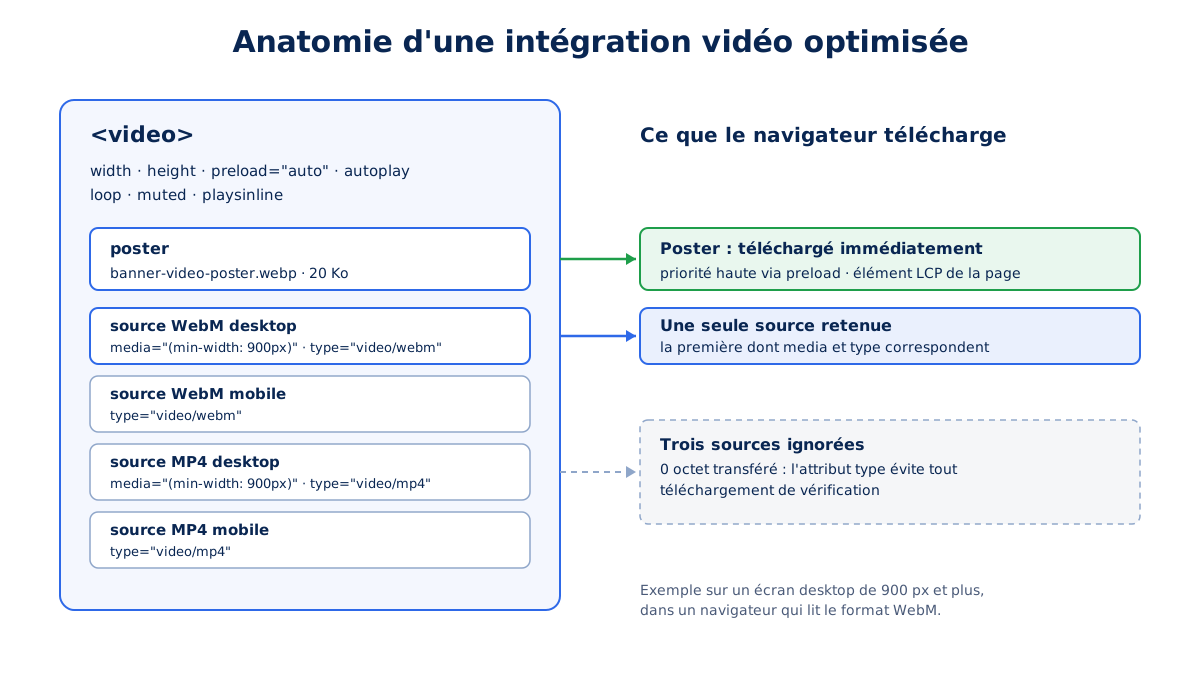
Here is the complete integration we deploy to insert a video as a top-of-page banner, with its four sources and all the attributes that control its behavior:
<video
  class="video"
  width="1920"
  height="1080"
  poster="/assets/img/banner-video-poster.webp"
  preload="auto"
  autoplay
  loop
  muted
  playsinline
  disablepictureinpicture
  disableremoteplayback
>
  <source type="video/webm" src="/assets/video/banner-video-hd.webm" media="(min-width: 900px)">
  <source type="video/webm" src="/assets/video/banner-video.webm">
  <source type="video/mp4" src="/assets/video/banner-video-hd.mp4" media="(min-width: 900px)">
  <source type="video/mp4" src="/assets/video/banner-video.mp4">
</video>
Every detail in this block has a reason: intrinsic dimensions reserve the display box, the poster provides the LCP element, the disablepictureinpicture and disableremoteplayback attributes neutralize intrusive interfaces, and the order of sources ensures that the lightest readable format is always chosen.
One last element completes a well-crafted integration without costing performance: the <track> tag, which associates WebVTT subtitles with the video. A silent background banner does not need it, but any content with spoken meaning must offer it, as video accessibility depends on its markup as much as on its weight.
Why declare the type attribute on each source
web.dev documentation on video and source tags recommends systematically adding a type attribute with the MIME type. Without it, the browser must download the beginning of each file to determine if it can play it : this means wasted requests and bytes for formats that will never play.
Serve a mobile version and a desktop version with media
The media attribute on <source> tags conditions the selection to a media query, here (min-width: 900px) for the desktop version. This capability, removed from browsers in 2014, became interoperable again in late 2023 with Firefox 120 and Chrome 120, while Safari never removed it from its implementation, as Scott Jehl recounts.
The selection rule differs from CSS : the browser keeps the first source whose attributes all match, then ignores the following ones. The declaration order is therefore decisive, and serving a video three times lighter to mobile devices requires no additional JavaScript.
What are the preload, autoplay, and muted attributes for?
These attributes control the player before any interaction. preload controls what is downloaded in advance, autoplay starts playback provided that muted turns off the sound, and playsinline prevents forced fullscreen on iOS. According to web.dev, Chrome buffers 25 seconds of video on desktop, none on mobile.
The behavior of each attribute, and the context in which it is justified, are summarized in a fairly short decision grid :
| Attribute | Effect | When to use it |
|---|---|---|
preload="none" | Download nothing | Video outside the first screen |
preload="metadata" | Duration and dimensions only | Default case |
preload="auto" | Immediate download | Hero banner only |
| autoplay | Playback on load | Only with muted |
| muted | Mutes the sound | Required for autoplay |
| playsinline | In-page playback on iOS | Systematic on mobile |
| poster | Cover image | Systematic |
Should we activate autoplay, then? Only for a short, muted, looping background video: the documentation on media preloading reminds us that browsers block audible autoplay, and that a muted plus autoplay combination remains the only reliable one.
A clarification is needed on the nature of preload: it is an indication given to the browser, not an order. Each engine remains free to adjust its behavior based on the connection or data saver mode, and this explains the difference observed between desktop and mobile. The metadata setting remains the recommended default value, as it provides duration and dimensions for only a few kilobytes.
How to defer loading a video ?
The reliable method combines preload="none" on insertion, then a switch to preload="metadata" triggered by an IntersectionObserver when the video nears the viewport. Downloading only starts when truly close, saving the entire video weight on short visits.
The IntersectionObserver technique
The IntersectionObserver API observes an element entering a given area around the viewport, without costly scroll listeners. The principle is contained in a few lines: we observe the video, and as it approaches, we increase the preload level then stop observing.
const video = document.querySelector('.video-differee');

const observer = new IntersectionObserver((entries) => {
  entries.forEach((entry) => {
    if (entry.isIntersecting) {
      video.preload = 'metadata';
      video.load();
      observer.disconnect();
    }
  });
}, { rootMargin: '200px 0px' });

observer.observe(video);
The 200 pixel rootMargin parameter triggers the switch slightly before it comes on screen, so that metadata is ready when the video becomes visible. The same mechanism can go as far as starting playback, for a decorative loop placed in the middle of the page.
This technique only concerns videos below the fold. A banner displayed from the first screen follows the opposite logic: preload="auto", high-priority preloaded poster, and no deferral. Deferring a resource that is immediately visible would only delay what the visitor is already waiting for.
Why lazy loading isn't enough on an iframe
On an embed, the loading="lazy" attribute on the iframe defers its loading until the viewport is approached: web.dev estimates the gain at around 500 KB on the initial load of a YouTube embed. The problem is that this deferral removes nothing: as soon as the visitor gets close, the entire player loads and executes.
A deferred embed therefore remains an embed paid for at full price by anyone scrolling the page, whether they play it or not. The only approach that reserves this cost for genuinely interested visitors has a name: the facade, which only loads the player on click.
Is your site as fast as your visitors expect?

How to embed a YouTube video without slowing down your site?
The answer is one word: facade. Google's Lighthouse documentation makes it an official recommendation: display a simple clickable image instead of the iframe, and only load the real player on click. The lite-youtube-embed facade thus displays about 224 times faster than the full player.
To measure what the facade avoids, we need to look at what a YouTube iframe loads before any playback starts: the JavaScript player, its styles, its fonts, and its audience measurement requests, which amounts to several hundred kilobytes executed on the main thread. This mechanism ties into the general issue of the cost of third-party scripts, of which video embeds are one of the heaviest representatives.
What is a video facade?
A facade is a static element that mimics the appearance of the player, including the cover image and play button, without loading its code. On hover, it preconnects to third-party domains; on click, it replaces itself with the actual iframe. The pattern is described by Addy Osmani as import on interaction.
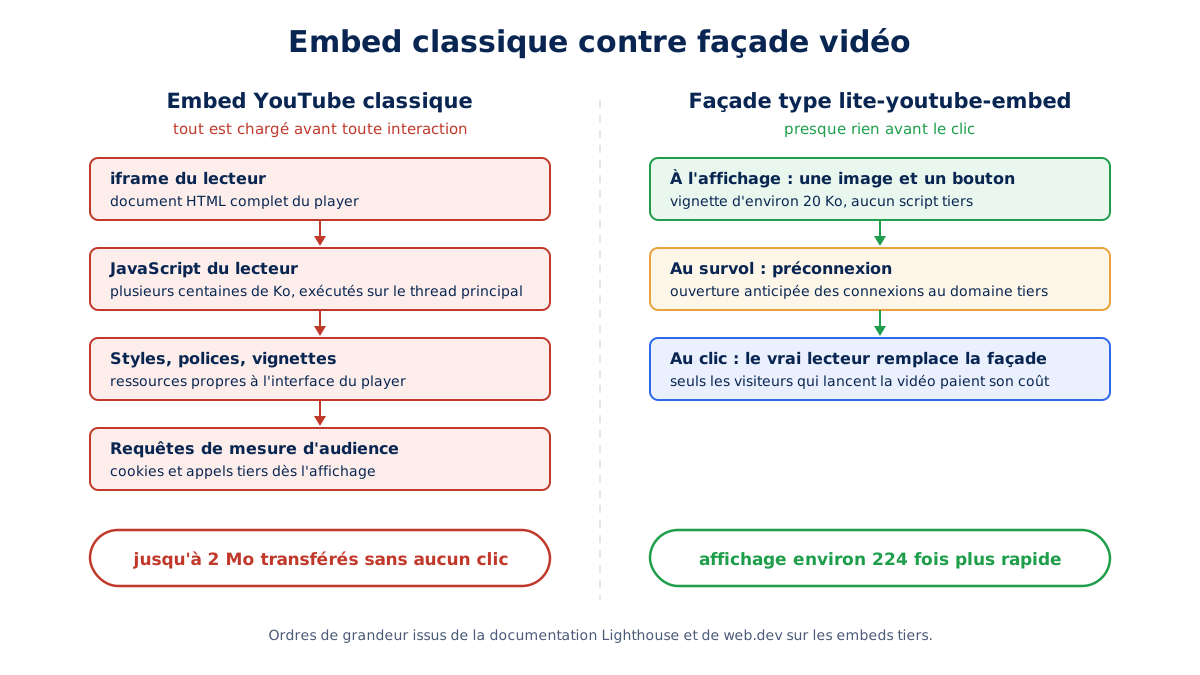
The side effects of an embed don't stop at JavaScript. An iframe injected without width and height attributes causes a layout shift when it loads, a case that web.dev documents in its best practices for third-party embeds. The code provided by YouTube includes these dimensions; that of some providers omits them, and the page's CLS bears the trace of it on every display.
youtube-nocookie and the consent issue
The youtube-nocookie.com domain enables the player's advanced privacy mode: according to YouTube's help documentation, the embed does not then deposit tracking cookies until the visitor starts playback, and the displayed ads are not personalized. Implementation is limited to replacing the domain in the iframe URL.
This mode reduces exposure, it does not eliminate data exchange at the time of the click, since playback establishes the connection to Google's servers. A rigorous consent policy therefore continues to treat video embeds as a full-fledged third-party service, facade or not.
Turnkey solutions
Several open-source components implement the facade pattern without specific development, and Lighthouse documentation directly references them: three of them cover almost all needs:
- lite-youtube-embed, by Paul Irish, the reference for the YouTube player;
- lite-youtube, by Justin Ribeiro, a web component alternative for YouTube;
- lite-vimeo-embed, the equivalent for the Vimeo player.
On the WordPress side, major performance plugins now natively include the preview image functionality: WP Rocket offers it under the name "Replace YouTube iframe with preview image", Perfmatters under "YouTube Preview Thumbnails", and FlyingPress via its replacement images for YouTube iframes. In all three cases, a single setting globally enables the preview image, on all existing embeds on the site, without altering the content of the articles.
These implementations even take care of the details: WP Rocket explicitly targets the Lighthouse audit on third-party previews, and FlyingPress hosts the thumbnail locally, which also removes the third-party image request. The effect goes far beyond a simple loading="lazy" applied to the iframe, since the player is never loaded for visitors who do not play the video.
Should you host your videos yourself or use a platform?
Self-hosting is ideal for short, silent background videos, a specialized platform like Cloudflare Stream for long catalogs, and YouTube or Vimeo for social reach, provided you use a preview image. The decisive criterion remains the duration and the editorial role of the video.
A specialized video host and mainstream platforms have real advantages that would be unfair to minimize: automatic encoding in multiple bitrates, adaptive streaming that adjusts quality to network conditions, delivery via a global CDN, and zero bandwidth cost for the publisher. For long content, this adaptive streaming is even technically superior to a single static file, as Scott Jehl points out regarding HLS.
The trade-offs are just as concrete: the weight of the embedded player, cookies and consent, lack of control over compression and interface, outbound recommendations that expose your visitors to competing content, and dependence on a service whose rules can change. An embed installs a piece of a site that doesn't belong to you on your page.
The three options are differentiated by crossing the level of control retained and the performance cost paid by visitors:
| Solution | Control | Performance Cost | When to choose it |
|---|---|---|---|
| Self-hosting and CDN | Total | Lowest | Short banner, loop, silent |
| Specialized platform | High | Low | Video catalog, adaptive streaming |
| YouTube or Vimeo embed | Low | Highest | Long content, desired social reach |
Self-hosting requires serving files correctly, ideally from a CDN with a long cache policy: a banner video hardly ever changes. Under this condition, it is the option that delivers the first video byte the fastest, without third-party JavaScript or cookies.
Its real cost lies upstream: producing four encoded files and a poster, keeping them up-to-date, and monitoring their weight with each video replacement. This is integration work, not a subscription, and it is only cost-effective if the video remains short: beyond a few tens of seconds, the single static file loses to adaptive streaming and the specialized platform becomes the right tool again.
How much should a video weigh on a website?
The benchmarks the agency applies in production are based on three figures: 800 KB target for desktop video with a ceiling of 1 MB, 300 KB for mobile video with a ceiling of 400 KB, and 20 to 30 KB for the WebP poster. Beyond that, the banner consumes the critical phase bandwidth without any return.
| Resource | Target | Ceiling |
|---|---|---|
| Desktop video | 800 KB | 1 MB |
| Mobile video | 300 KB | 400 KB |
| WebP poster | 20 KB | 30 KB |
These budgets are not theoretical: the measurement on August 7, 2026, on cms-france.fr showed a desktop WebM of 2.88 MB and a poster of 70 KB, which is nearly three times the ceiling for the video and more than double for the image. The page paid for this overrun on every visit, on every mobile connection.
The strictness of the mobile budget is explained by the consumption context: variable bandwidth, limited data plans, and more modest processors. A 300 KB mobile video already represents the equivalent of several optimized hero images; accepting 2 MB means downloading, before any interaction, more than the rest of the entire page.
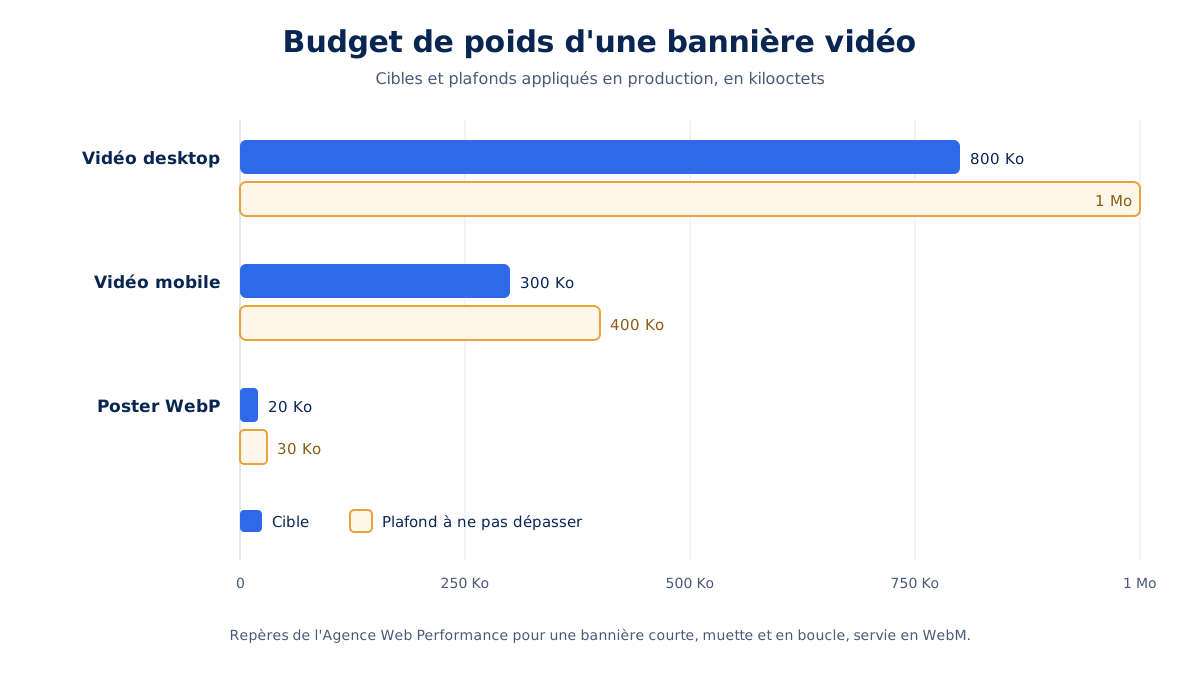
Achieving these targets requires VP9 or AV1 encoding with constrained bitrate, on short, silent, looping content. The bitrate, explained in detail by web.dev, remains the parameter to arbitrate first: at the same definition, it is what determines the final weight of the encoded file.
How to prevent a video from causing a layout shift?
You must apply the width and height attributes to the <video> tag itself, not just its container. The browser deduces the aspect ratio from the HTML parsing and reserves the box before any download, which is necessary to meet the CLS threshold of 0.1 set by web.dev.
The trap is real even on well-maintained integrations : the measurement of August 7, 2026 on cms-france.fr attributed a mobile CLS of 0.502 to the video element alone, even though the parent container reserved 700 pixels in height and an aspect-ratio rule was present. The other causes of visual shift follow the same logic : the box of the element itself must be determined.
The example says something important about half-measures. Reserving the container's height protects elements below the banner, but leaves the video resizing within it; an aspect-ratio rule fixes nothing if the width and height remain automatic. Lighthouse precisely names this diagnosis, a media element lacking explicit size in the HTML.
The anti-pattern of centering with negative margins
A CSS pattern inherited from full-screen banners centers the video by stretching it between four negative margins, with dimensions left to automatic. As long as the file metadata has not arrived, the box remains indeterminate and the browser resizes it during loading, which produces a massive shift at the worst moment :
/* À proscrire : dimensions indéterminées jusqu'aux métadonnées */
.video-wrapper video {
  position: absolute;
  top: -9999px; bottom: -9999px; left: -9999px; right: -9999px;
  margin: auto;
  min-width: 100%; min-height: 100%;
  width: auto; height: auto;
}
The expected CSS
The stable version constrains the element to its container's dimensions and entrusts framing to object-fit, so that the box is known before the first video byte is downloaded :
.video-wrapper video {
  position: absolute;
  inset: 0;
  width: 100%;
  height: 100%;
  object-fit: cover;
}
The winning combination therefore associates the width and height attributes in the HTML, which set the ratio, and this framing CSS, which controls the rendering. Neither half is sufficient on its own, and it is precisely their combination that eliminates the risk of shifting.
How to measure the impact of a video on performance?
Three indicators are sufficient in DevTools: the weight transferred by the video and its poster, the share of LCP attributable to the poster, and the CLS attributed to the video element. The target remains an LCP under 2.5 seconds and a CLS under 0.1, the thresholds defined by the Core Web Vitals.
The verification takes place in three passes, each in a separate panel of the developer tools, preferably with network and processor limitations enabled :
- the Network tab, filtered for media, gives the weight actually transferred by each video source and by the poster, to be compared with the budgets from the previous section;
- the Performance panel breaks down the LCP into sub-parts and reveals a poster discovered too late, like the 535 ms of Load Delay measured in the field;
- the Layout Shifts section of the same panel attributes each shift to its triggering element, thus isolating the exact responsibility of the video.
These laboratory measurements must then be compared with field data, those from the Chrome User Experience Report, which reflect the actual devices and networks of your visitors. A significant gap between the two almost always signals a more constrained mobile fleet than expected.
For embeds, a pass through Lighthouse completes the diagnosis: its report isolates the share of each third-party provider in the weight and main thread blocking time. A YouTube iframe appears there by name, with its kilobytes and milliseconds, allowing you to quantify the expected gain of a facade approach even before implementing it.
What to remember about video optimization
What looked like a copy-paste of an embed turned out to be a chain of technical decisions: format, codec, bitrate, poster, preload, defer, facade, hosting, weight budget, dimensions, and measurement. Each is simple in isolation; their combination is what separates a fluid banner from a pitfall.
The video banner on a homepage concentrates the challenge: it is the integration most requested by marketing teams and the most regularly failing one we encounter. The three field metrics cited in this article, a CLS of 0.502, a Load Delay of 535 ms, and a video of 2.88 MB, come from a single banner in production.
Identifying these deviations requires knowing where to look, and that is precisely the job that a web performance audit carries out page by page, including videos. Between an embed placed in thirty seconds and a mastered native integration, the difference is measured in megabytes transferred: it is your mobile visitors who bear the difference.